Employees
- Clock in and out for each job
- Switch jobs during the day with one tap
- Post daily notes and site photos
- See your hours for the week

Clock in and out by project, log daily job notes and site photos, all from your phone. Crew, managers and our GC and owner partners each log in to their own view.
Everyone uses the same app and the same link. What you see after logging in depends on your account.
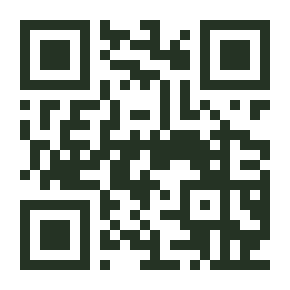
There's no App Store download. Open the link once, add it to your home screen, and it opens full-screen with the HULK icon, like any other app.
Use the username and temporary PIN from your manager. The first time you log in, you'll choose your own PIN.
Open the Clock tab, choose the project you're working on and tap Clock in. Allow location when your phone asks.
Moving to another site? Pick the new job and tap Switch. At the end of the day, tap Clock out.
Tap New note, pick the job and date, write what got done and add up to 10 photos. A manager reviews each note before GCs or owners can see it.
The app records your location when you clock in, when you clock out, and about every 5 minutes while you're on the clock and the app is open. It does not track you when you're off the clock.
Ask your manager to reset it, or call the office at (253) 444-7435. Missed a clock-out? Tell your manager and they can fix the time.
Open the HULK Crew app and log in with your username and PIN.